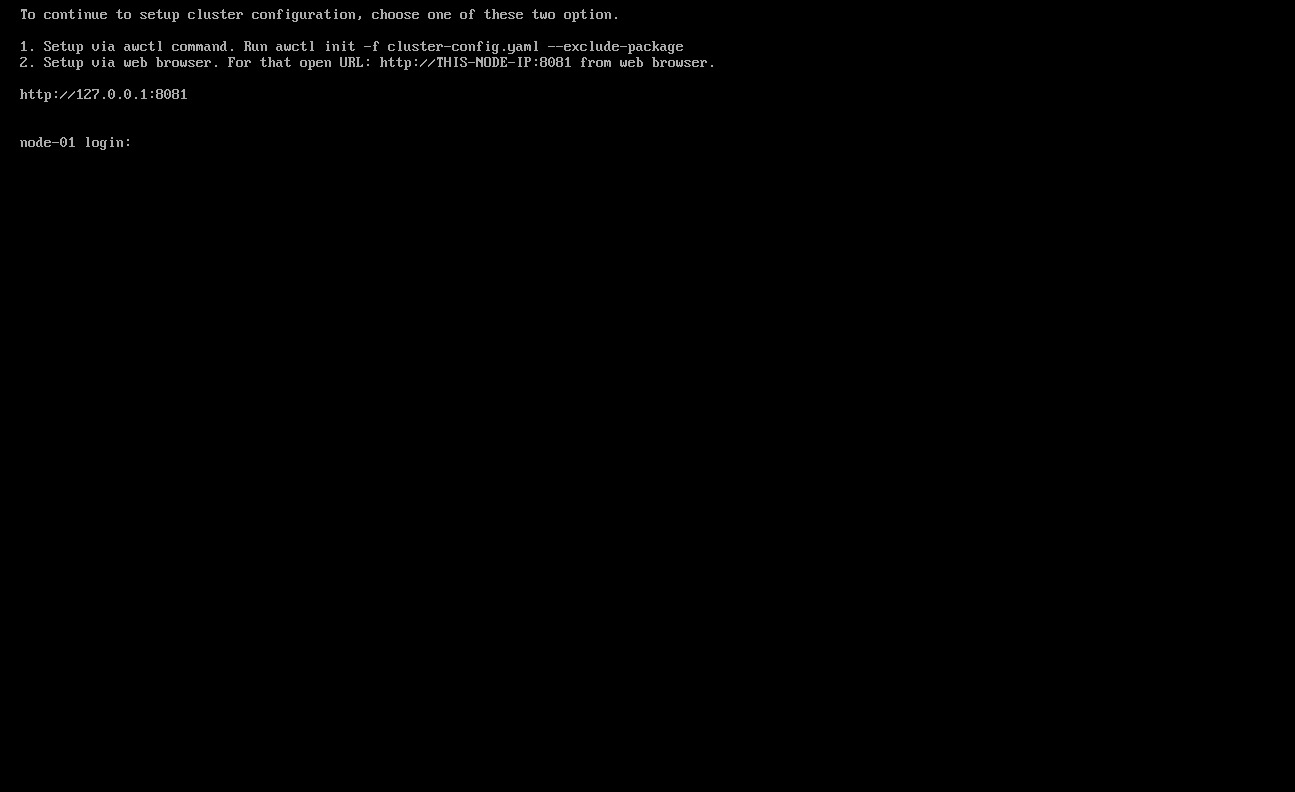

AwaniOS
To install AwaniOS, you need to download the ISO file from Awanio Customer Portal Web. Once you download the ISO file, you have to copy the ISO into USB and make it bootable. These are the steps to create bootable USB from ISO file https://linuxconfig.org/how-to-make-a-bootable-usb-from-an-iso-in-linux
When the USB is ready, you need to configure the server as follows:
- Data on your hard drive of your server will be overwritten during the installation process. Therefore, make sure that the hard drive data is backed up.
- Enter BIOS, and enable CPU VT and hyper-threading (HT).
- Enter the RAID controller and configure the RAID levels to provide data redundancy.
- Set USB drives as the first device to boot in the boot sequence.
- AwaniOS only supports UEFI boot mode. For this, you need to make sure your BIOS supports it.
After you complete the preceding configurations, reboot or power on the server, and enter the installation wizard.
On the ISO installation page, select Start Awanio Installer.

Define your location. For example in Indonesia, on the “Select your location” page, select Country, territory or area as ‘Other’. 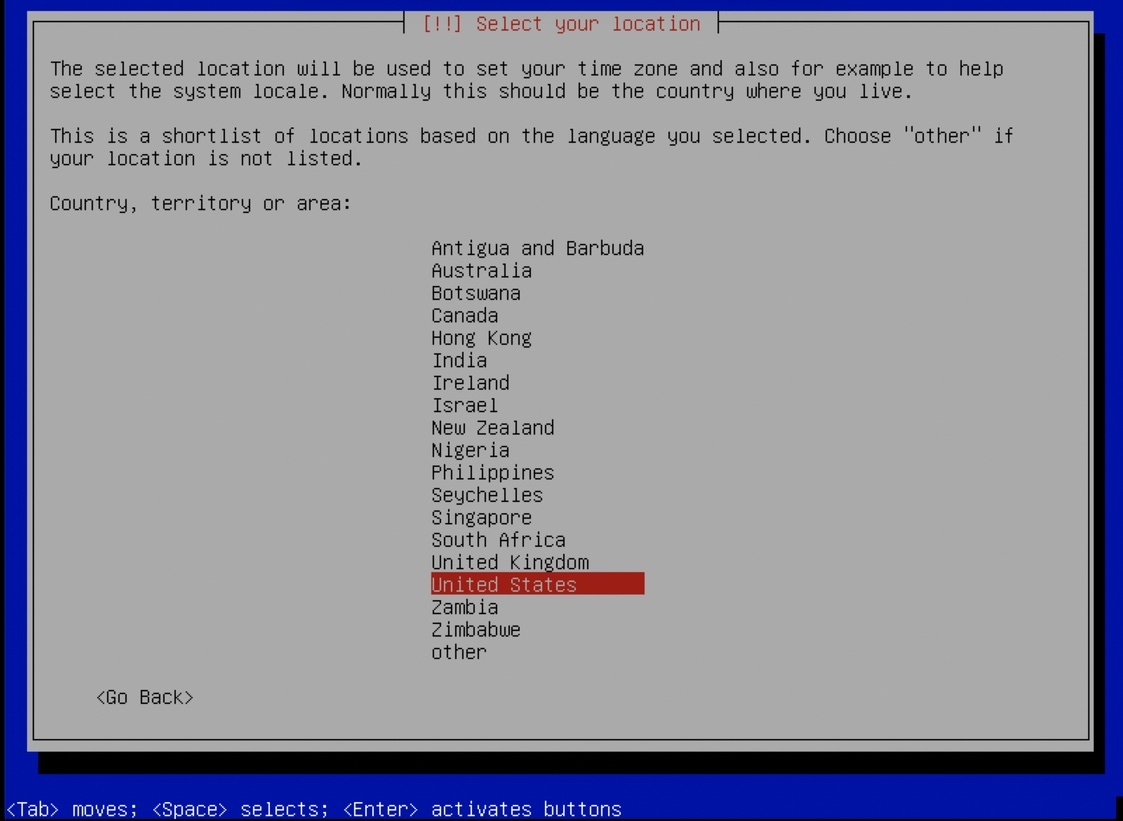
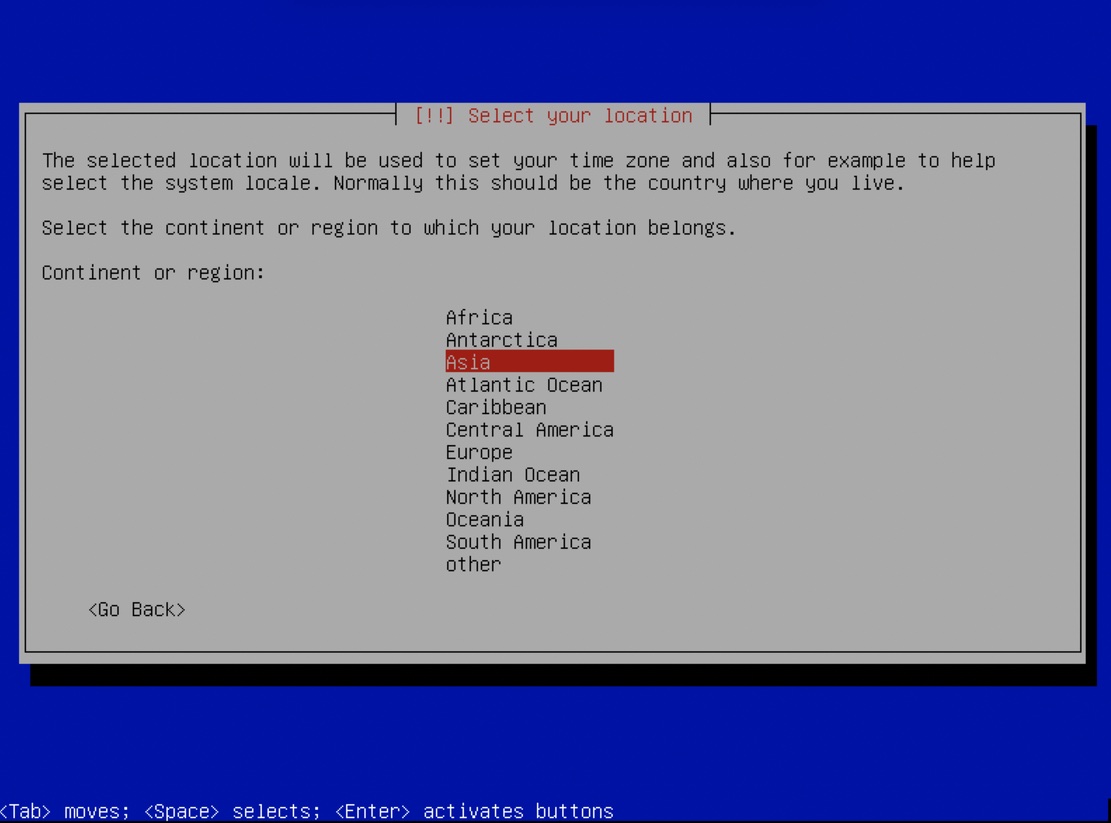
Continent or region: ‘Asia’
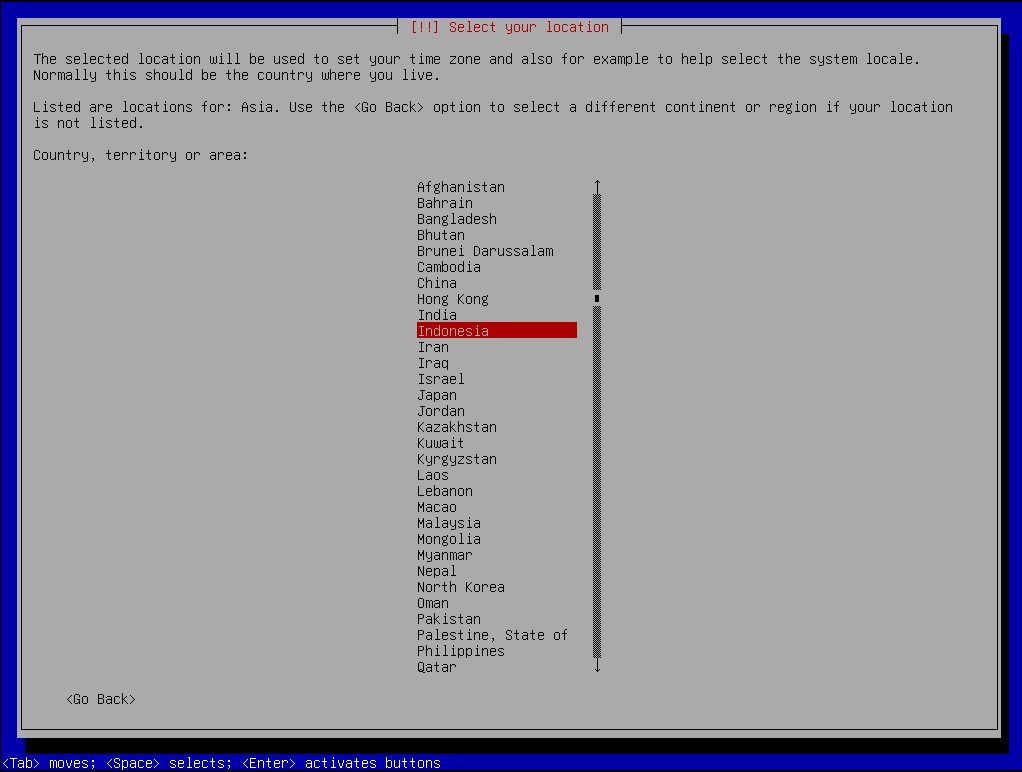
Country, territory or area: ‘Indonesia’
Select keymap/keyboard layout
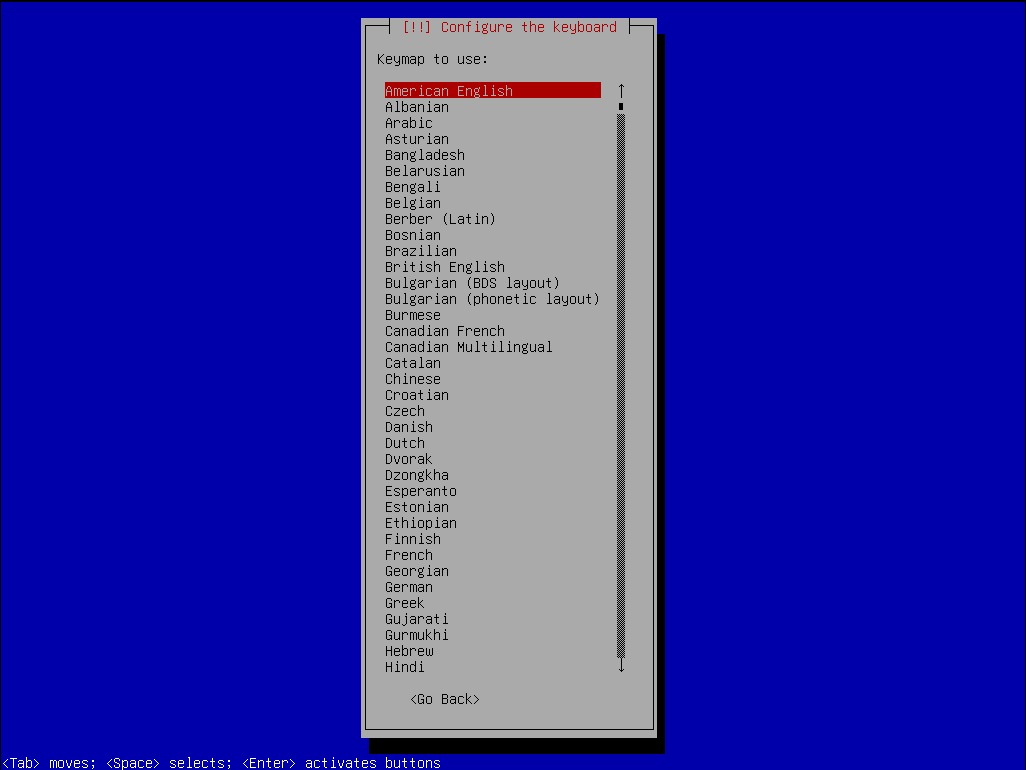
Configure the network. Select your primary network interface.
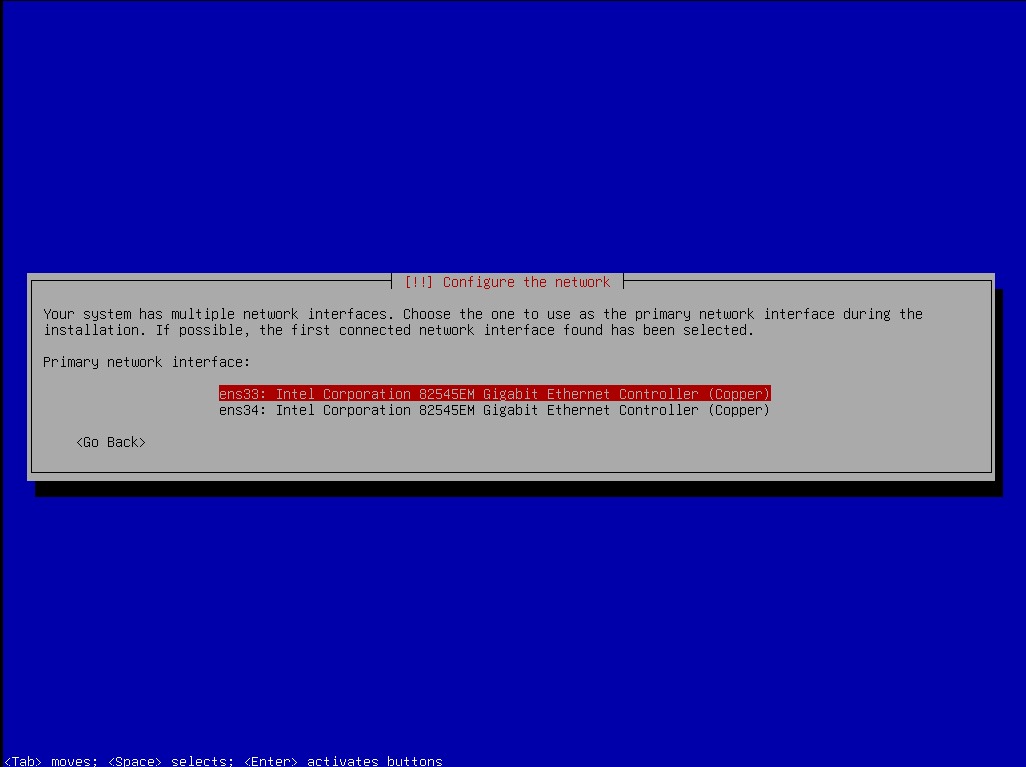
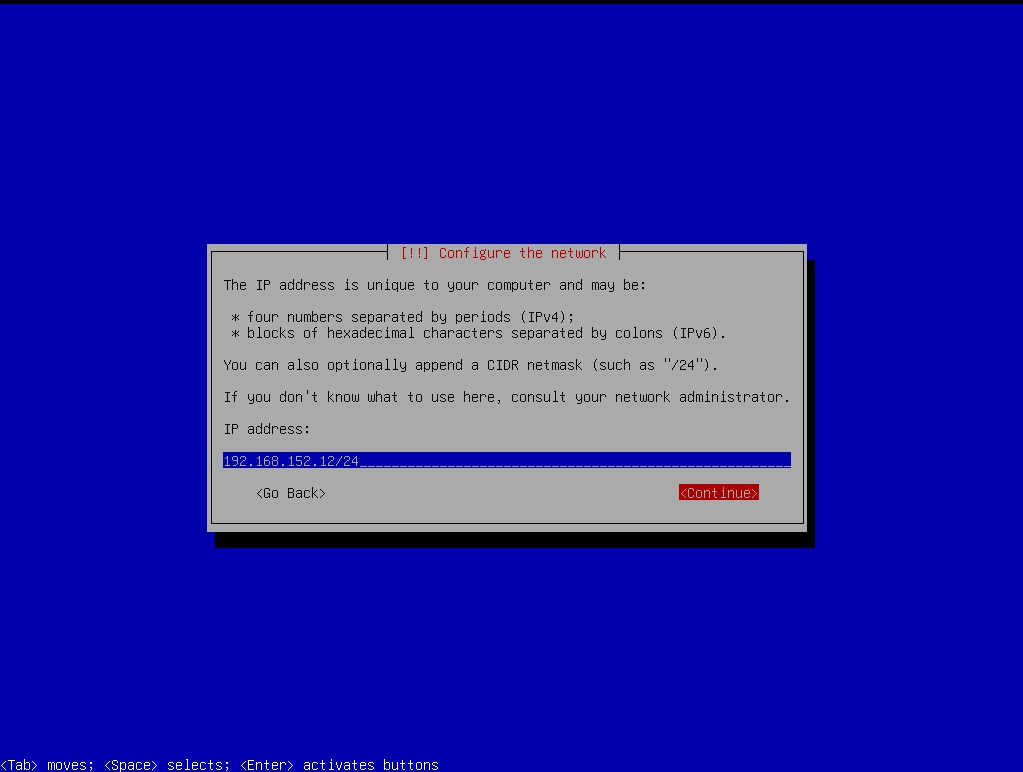
Your server must be set to a static IP address.
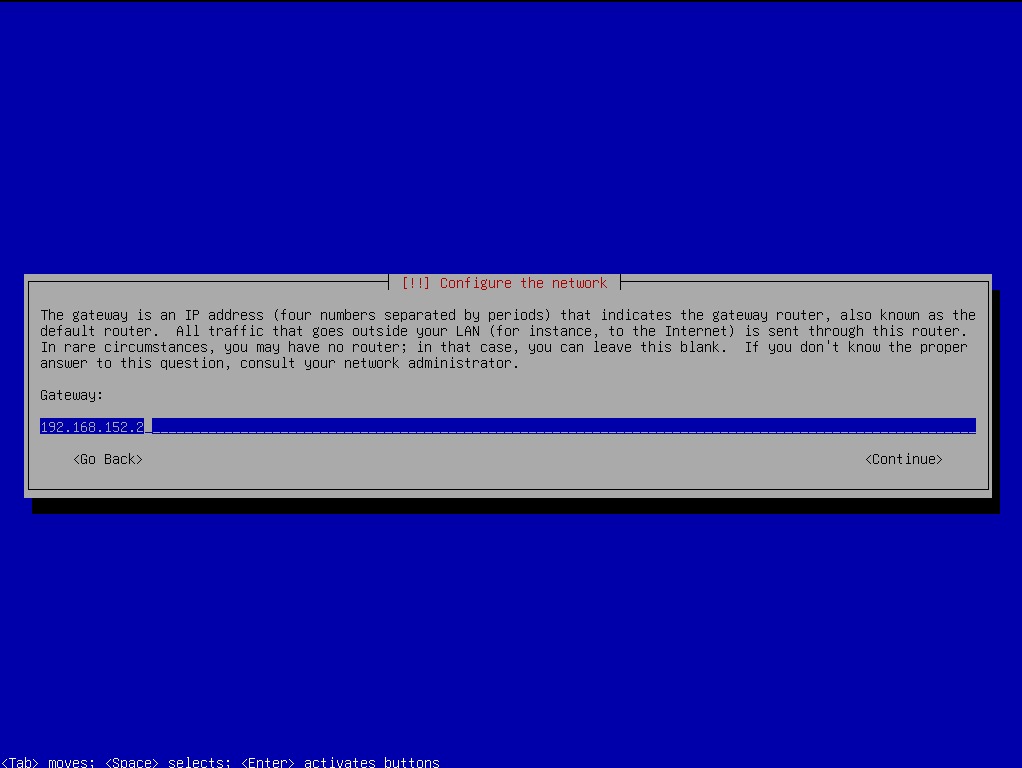
You also need to set the Gateway IP address.
Then, you need to set the Name server (DNS) IP address.
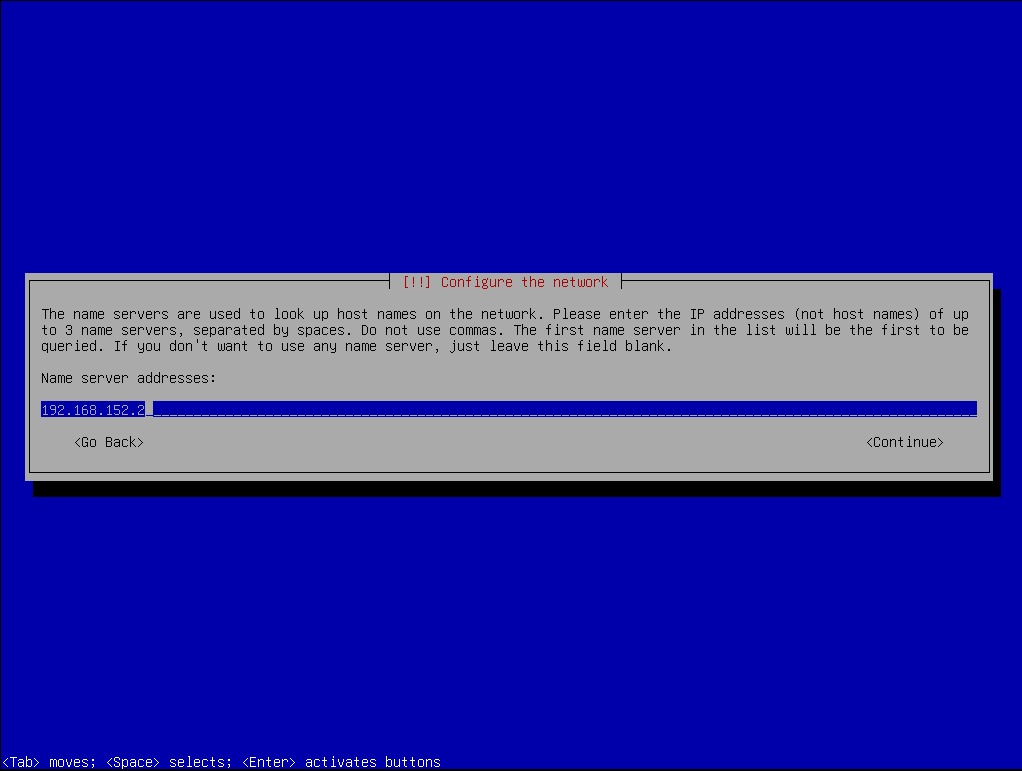
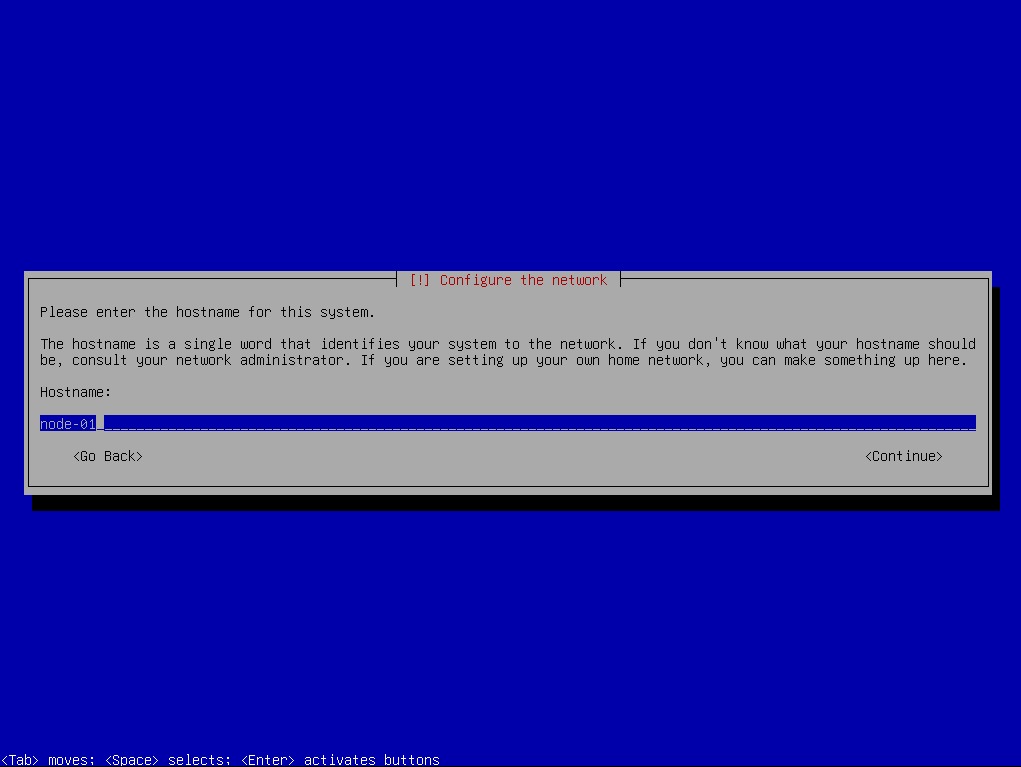
By convention, every server will have hostname prefixed with node-xx. For the first node, you should use 'node-01' hostname. For the second node, you should use 'node-02' hostname. And so on.
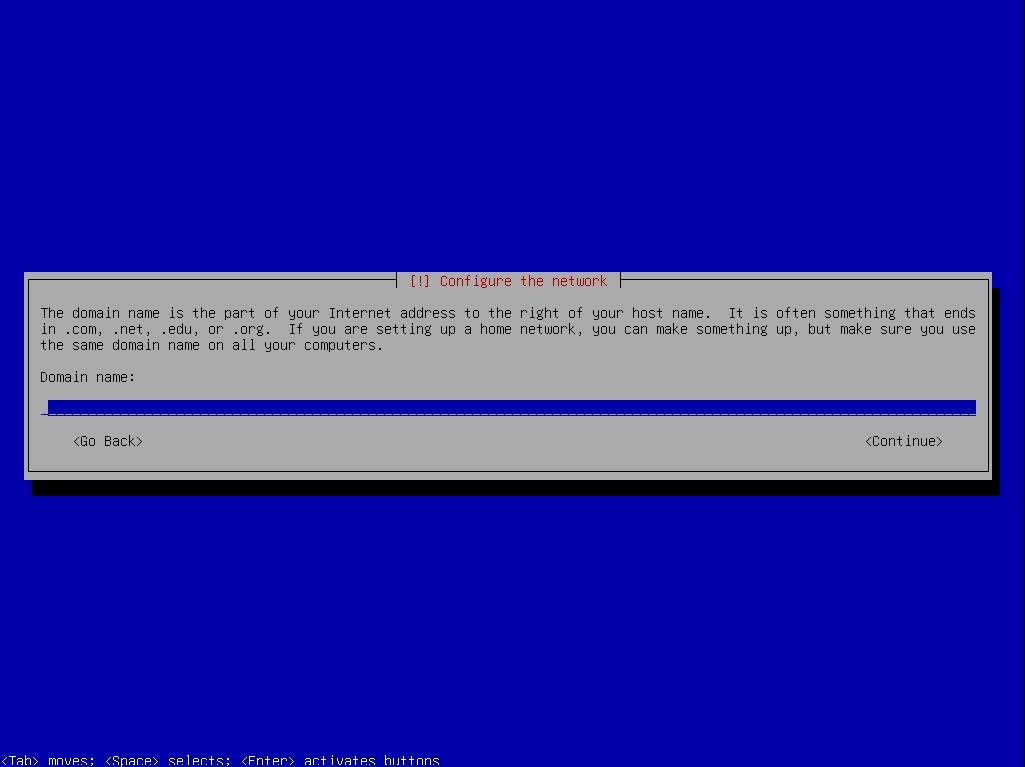
If your local network provides a domain, you can fill in the value here. If not, let it empty.
In the next step, you need to provide the default OS user password.
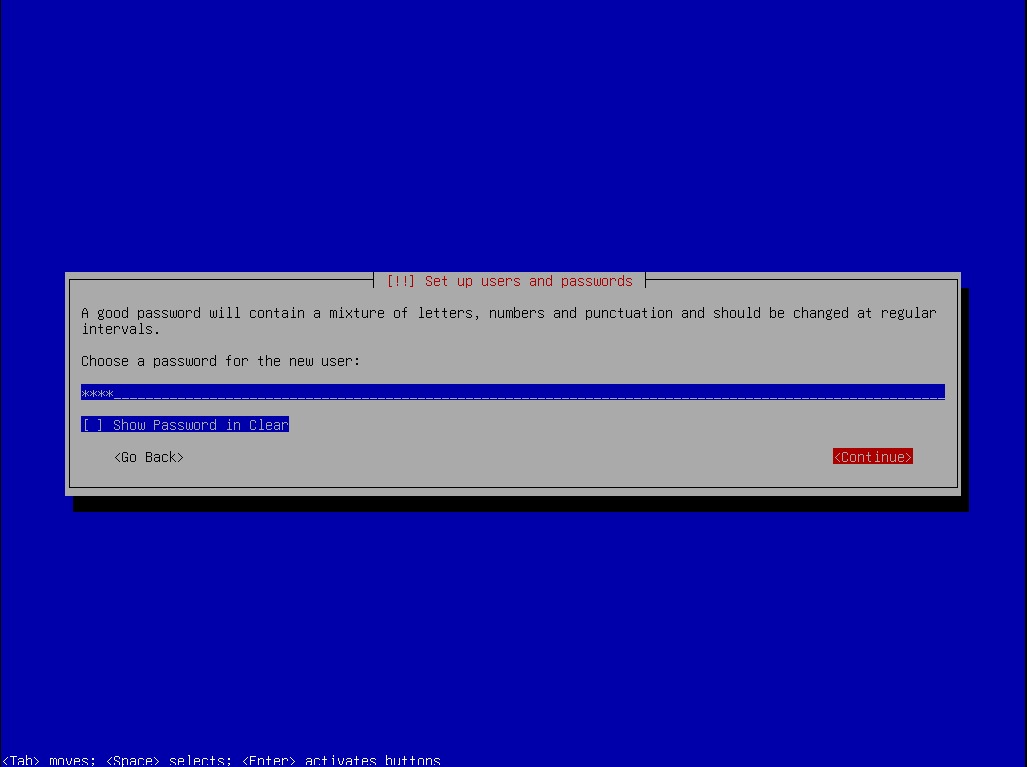
Re-enter the password once again.
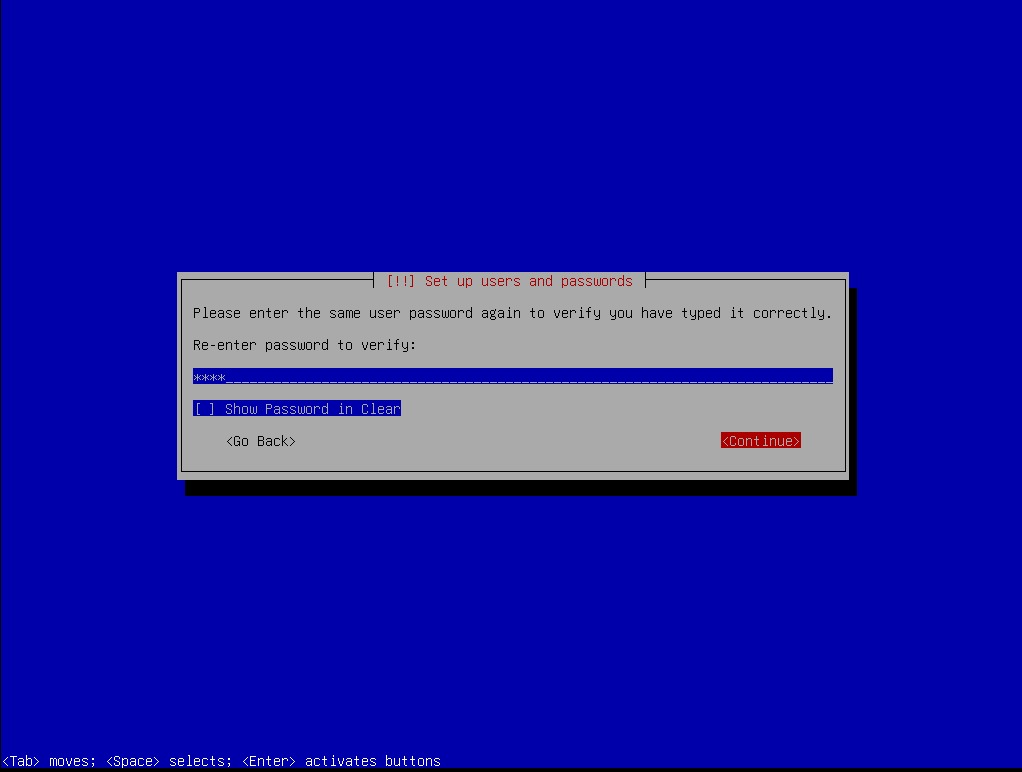
Select your location timezone.
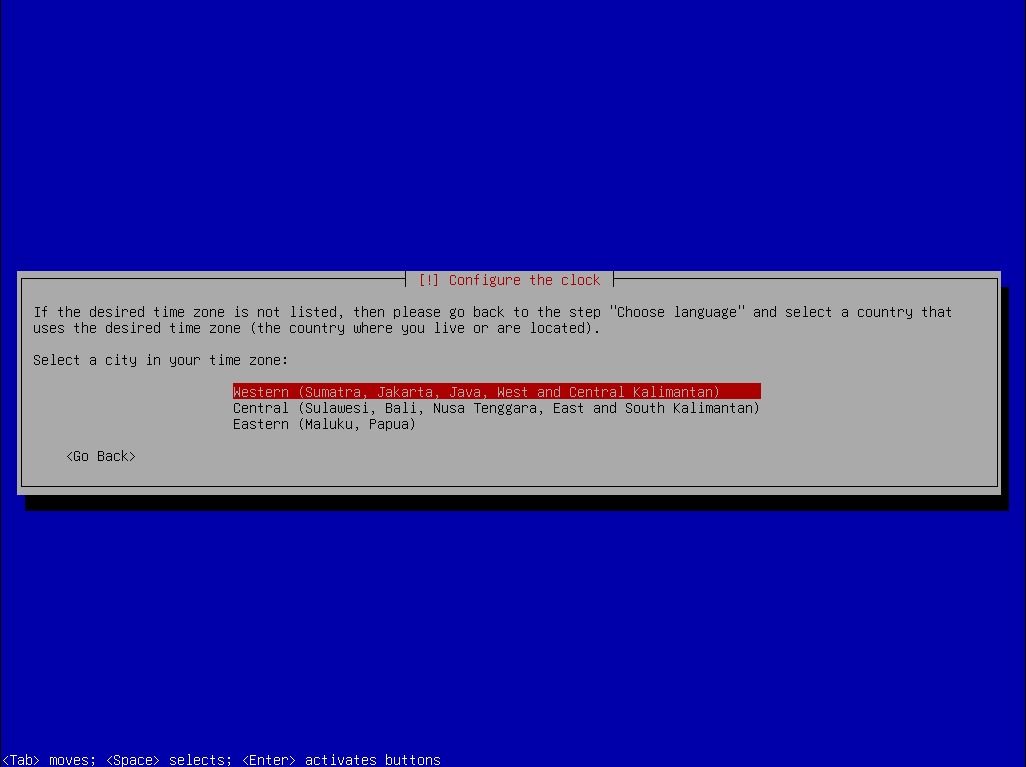
Configure the partition disk. Select ‘Guided - use entire disk’ option for Partitioning method.
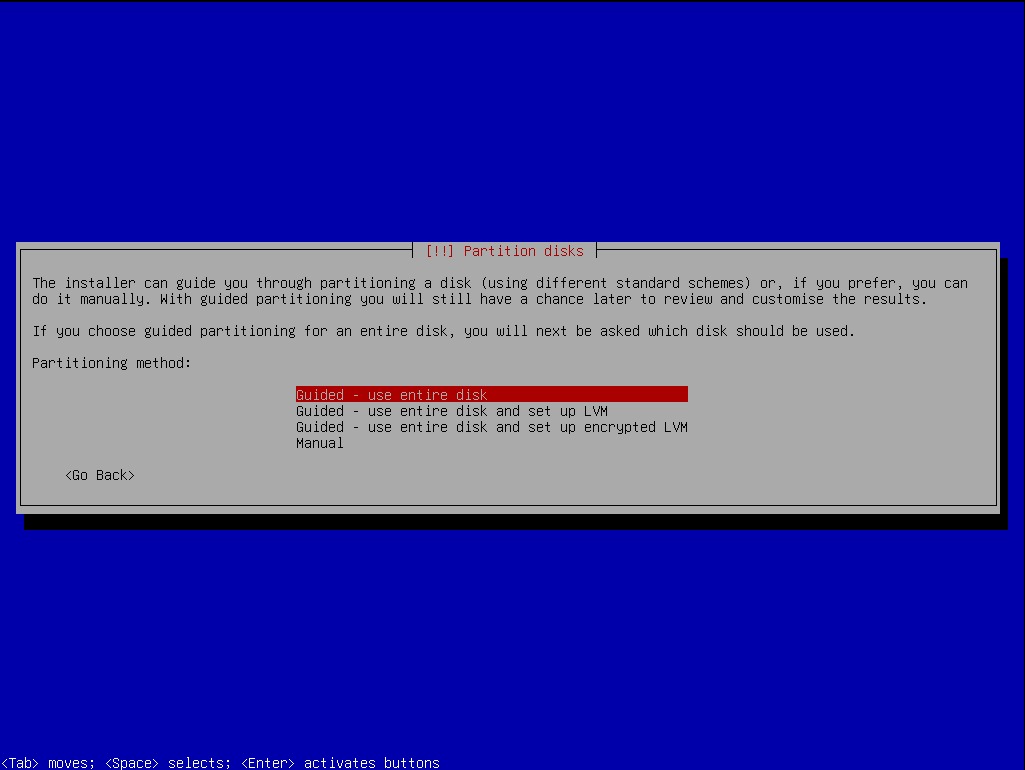
Select disk to partition.
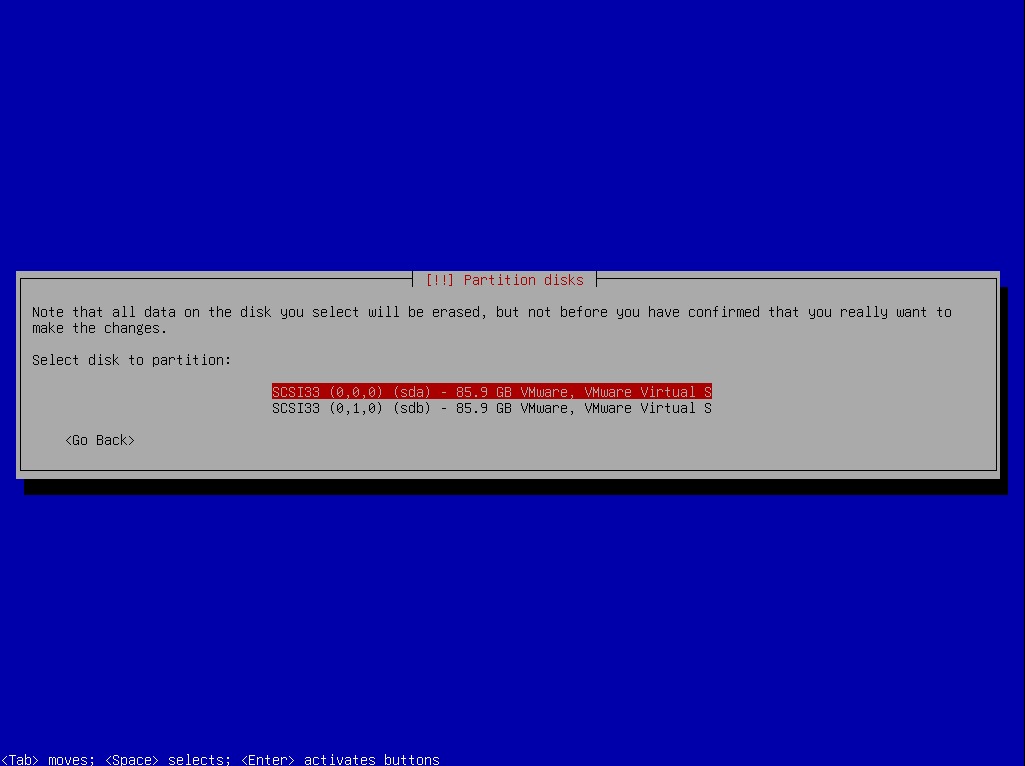
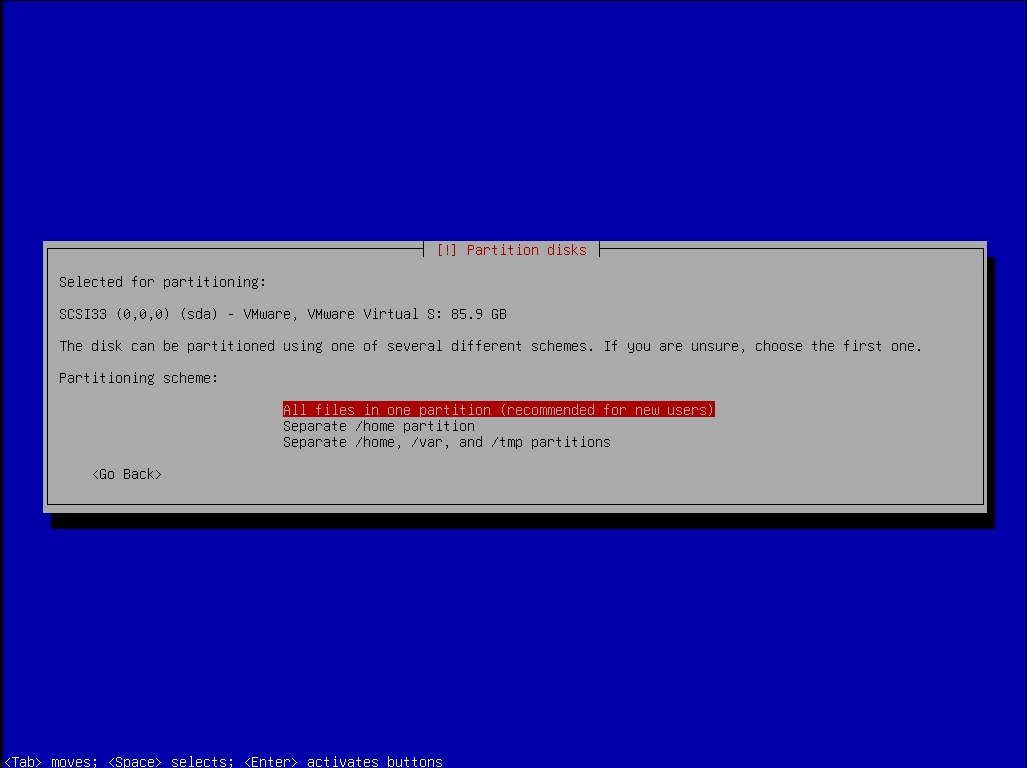
Select ‘All files in one partition’ option in Partitioning Scheme question.
Next, review the configured partitions and mount points. Select 'Finish partitioning and write changes to disk'. 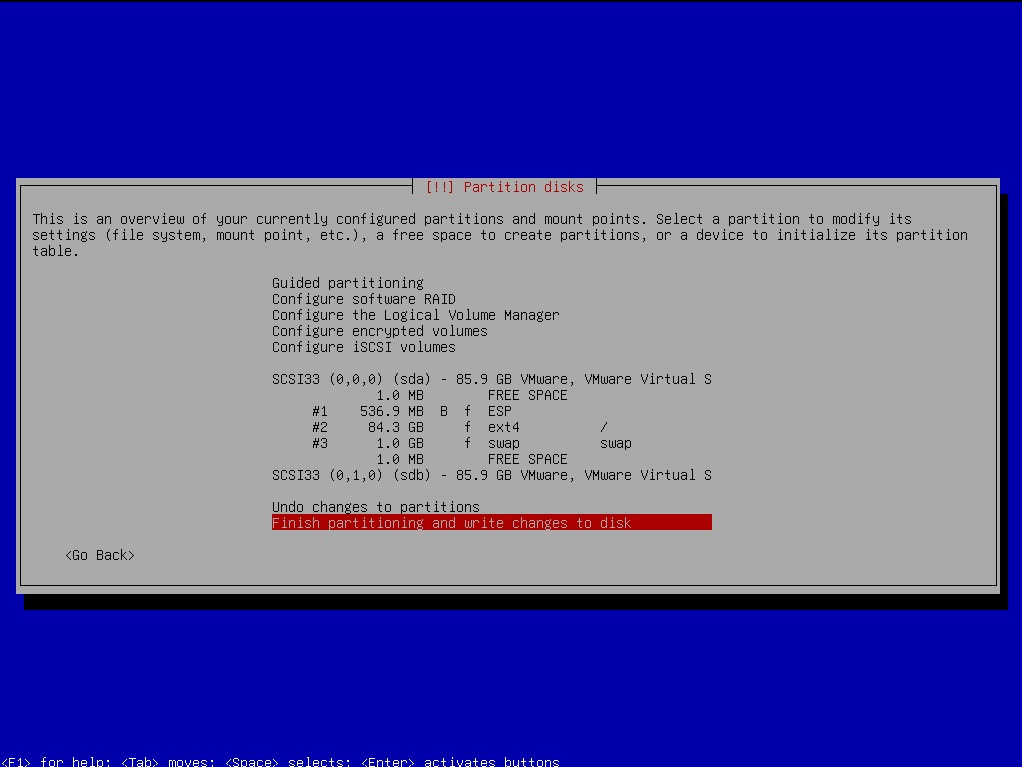
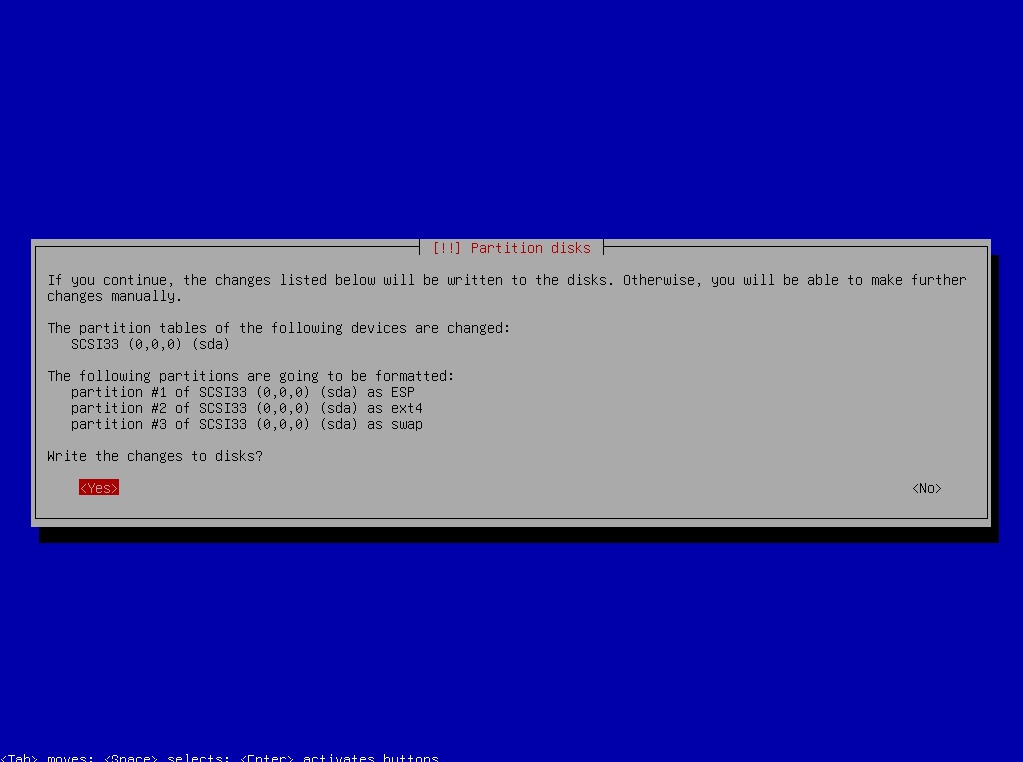
Confirm writing the changes, select ‘Yes’.
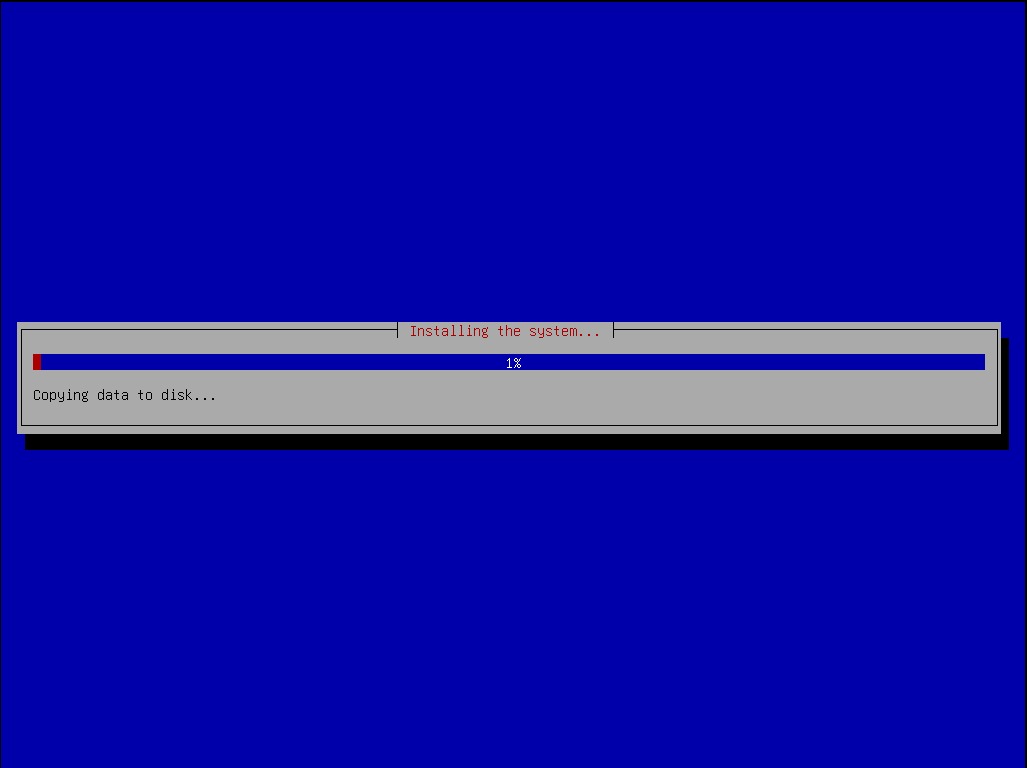
The progress of installation will be displayed.
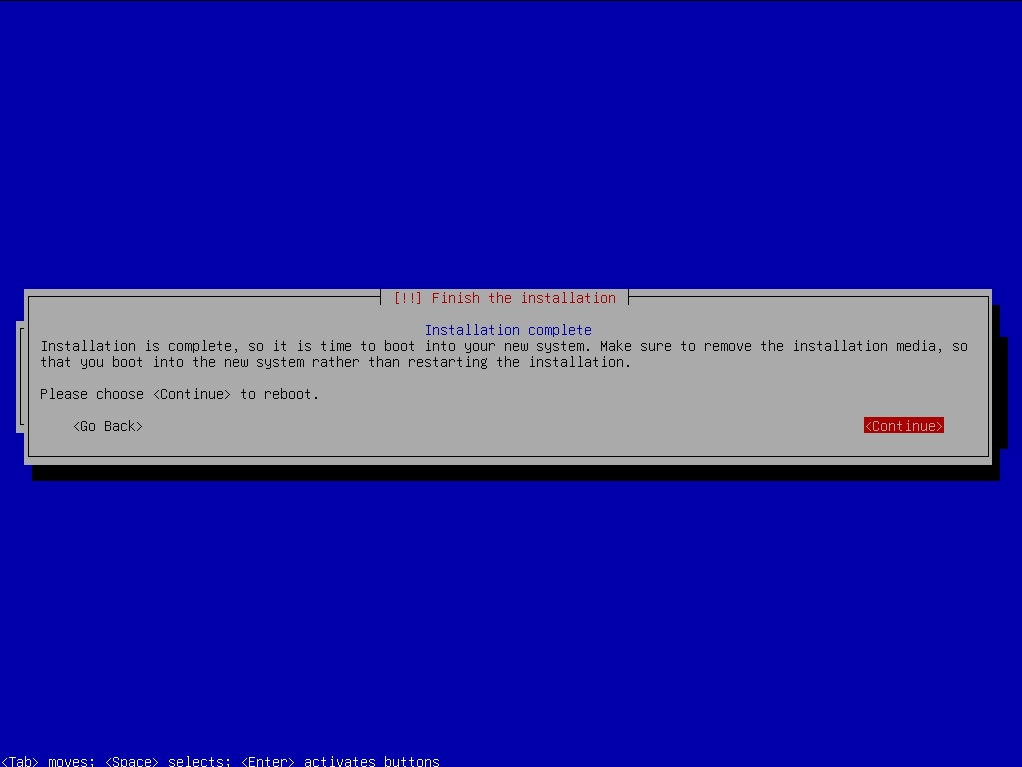
After the installation is completed, the server needs to reboot to continue the next setup. Select ‘Continue’.
Once the server is rebooted, we will continue the process to the cluster setup.